2. Design the pages
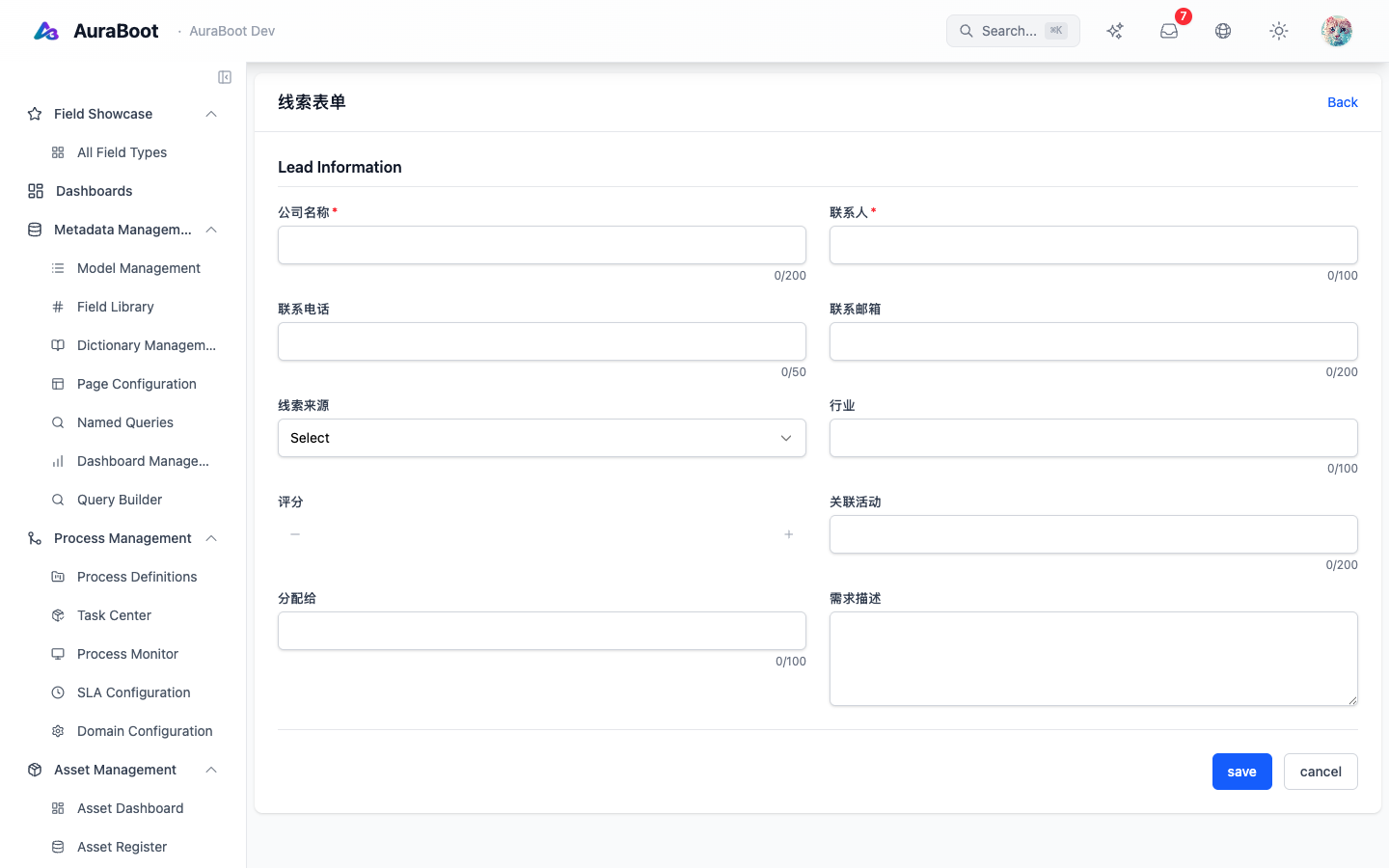
By default the platform auto-generates empty page stubs for every model. In this chapter you replace those stubs with hand-designed list, detail, and form pages using the Page Designer — a schema-driven canvas where blocks, columns, and fields are configured visually, never hand-coded as .tsx.
Estimated time: 30–40 minutes.
2.1 Lead list page
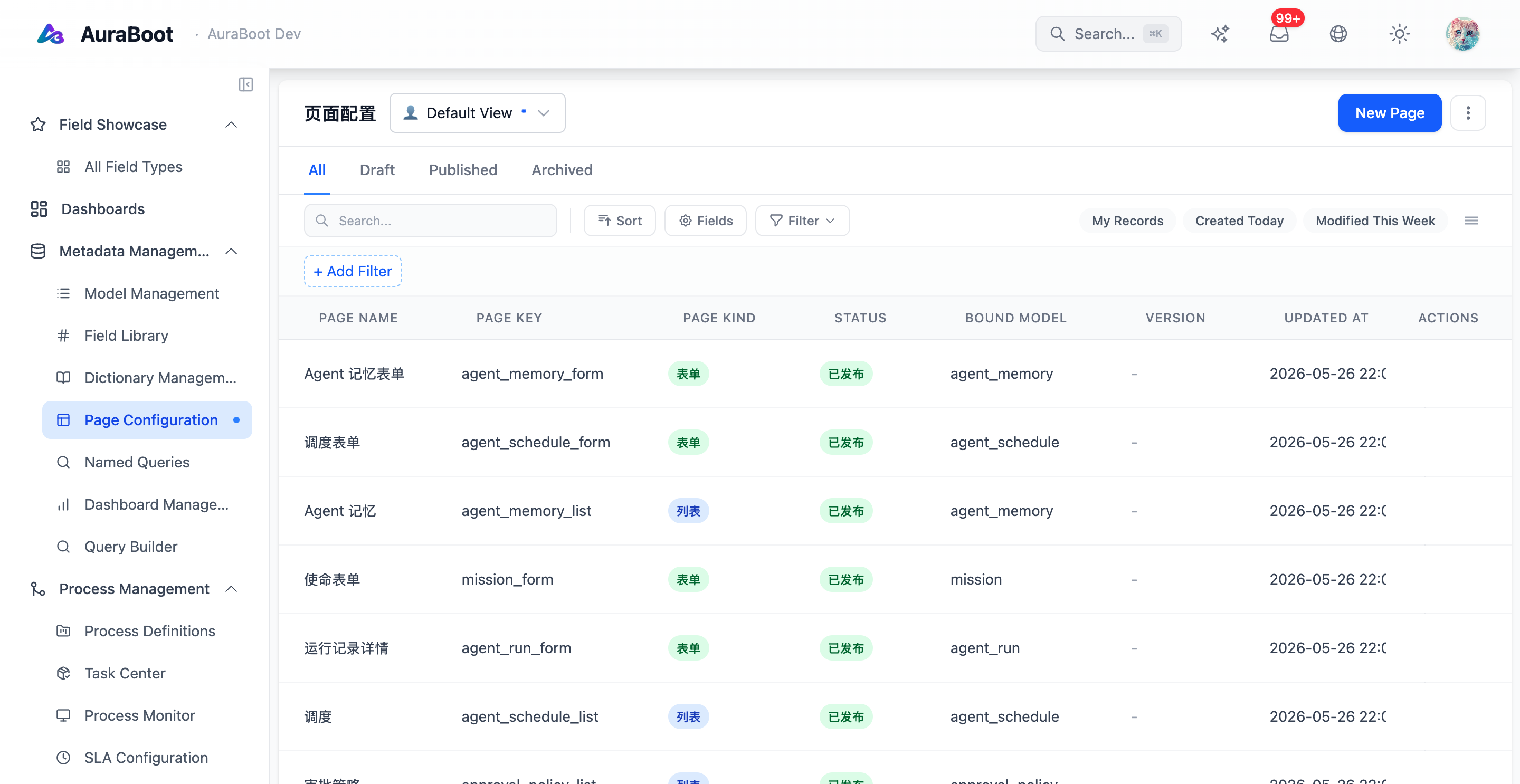
Open Designer → Pages → crm_lead/list and configure:
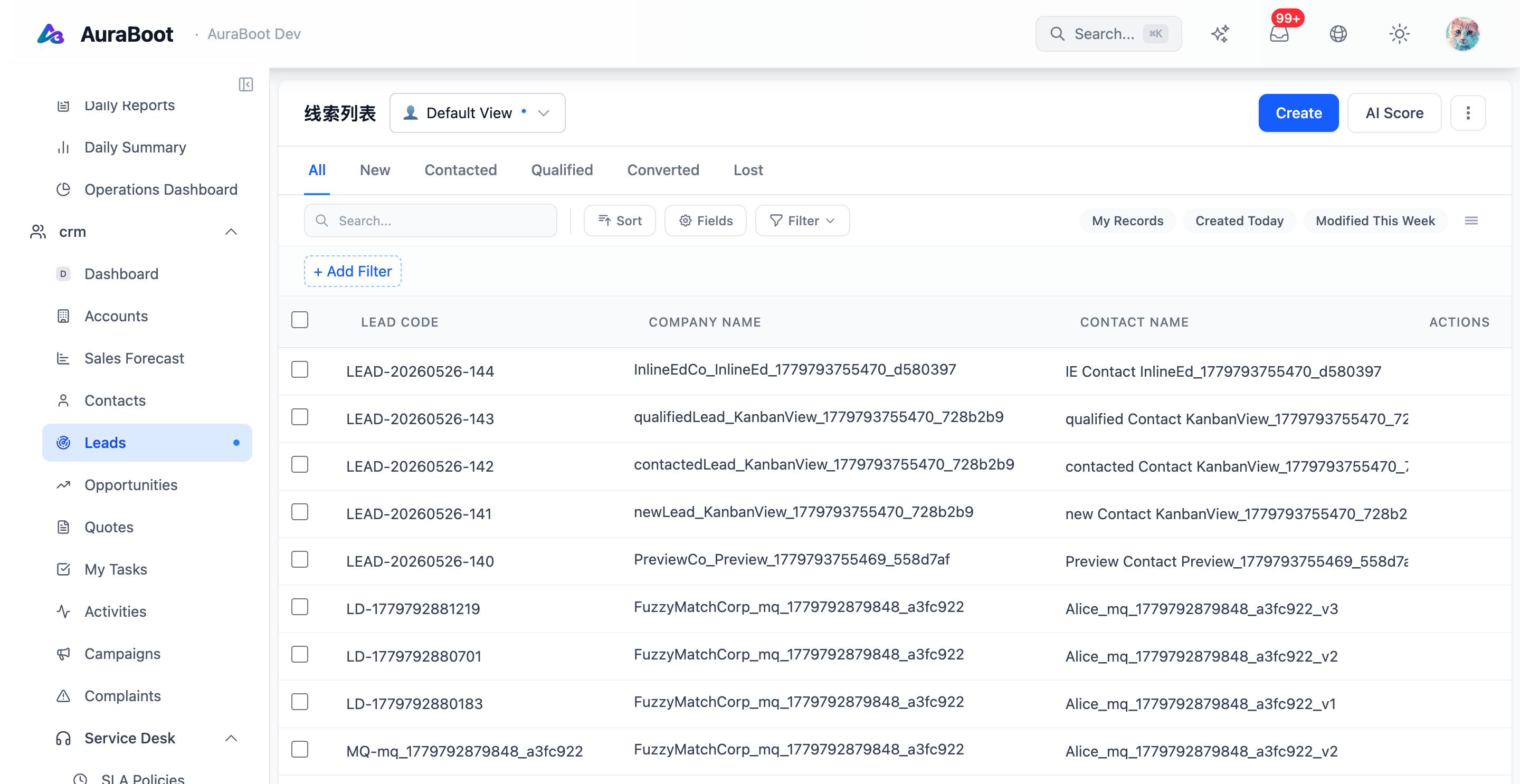
- Columns:
name,email,source,score,status,created_at - Filters:
status,source, free-text onname|email - Actions per row: Open, Qualify (calls the
crm_lead.qualifycommand) - Toolbar action: + New Lead opens the form
The canvas shows the block tree on the left, the live page in the centre, and the property panel on the right. You drop a table block, bind it to the crm_lead model, then add columns from the field palette — no JSX, no rebuild.
2.2 Lead form
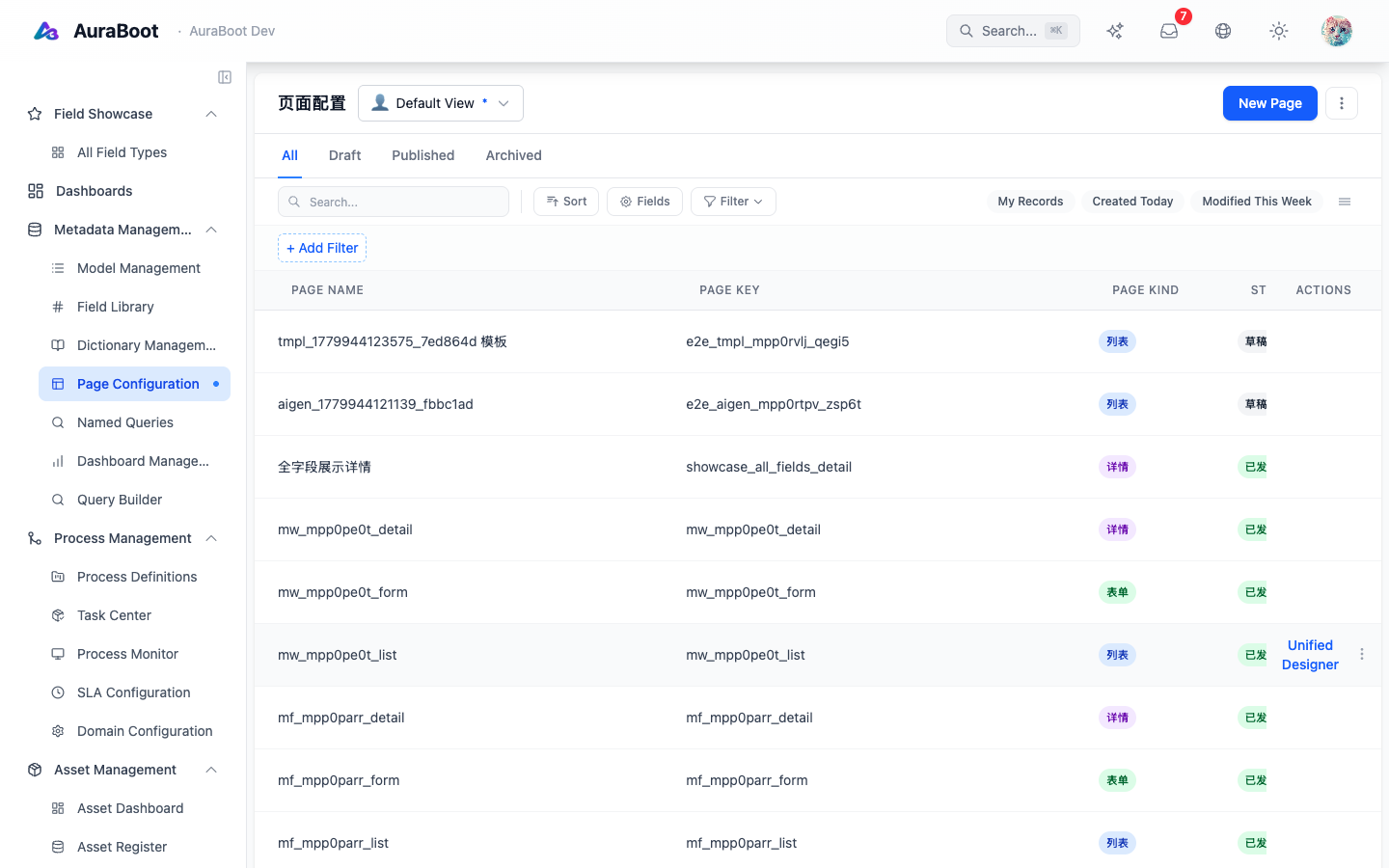
The form should group fields into two sections:
- Contact:
name,email,phone,source - Qualification:
score,status,notes
Mark name, email, source, status as required. The Designer will render the asterisk and refuse to submit on empty.
2.3 Lead detail
Use a two-column layout. Left column: contact + qualification. Right column: a custom block recent-activity (you will plug it in chapter 4).
2.4 Account pages
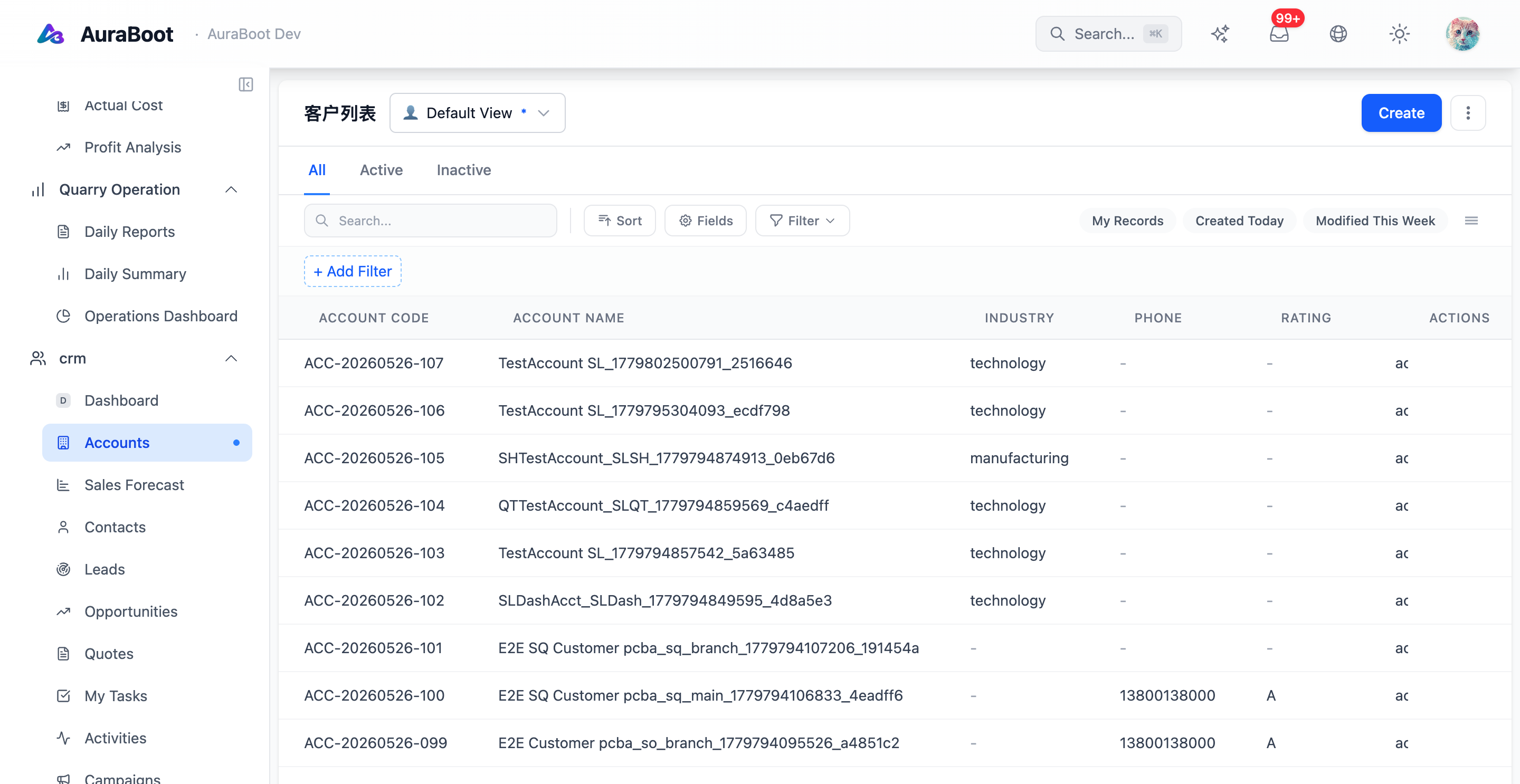
For Account, the list shows name / tier / owner / # opportunities. The last column is a computed read-only summary — add it as a virtual field in the model or as a custom column in the page definition.
2.5 Opportunity pages
The Opportunity list is the heart of the CRM. Add:
- A grouped-by-stage view (kanban-style) using the built-in
groupBypage option - A "sum amount" widget on the toolbar that refreshes on filter change
// excerpt of pages.json
{
  "kind": "list",
  "model": "crm_opportunity",
  "groupBy": "stage",
  "toolbarWidgets": [
    { "kind": "sum", "field": "amount", "label": "Pipeline value" }
  ]
}2.6 Verify
- Navigate from the menu to CRM → Leads / Accounts / Opportunities and confirm each page loads
- Try creating one record per model
- Confirm required fields fail validation with field-level errors (not a generic toast)
- Confirm raw codes (
crm_lead,mt_crm_lead) never appear in column headers, labels, or error messages — those are red lines from the page golden gate
Next